
 Transaction Account
 Savings Accounts
 Term Deposits
 Internet Banking
 Mobile Banking App
 Find a Branch
 Bank@Post
 Overseas Transfer / Currency
 ATMs
ATMs eStatements
Adding your card to your digital wallet
Follow this guide to set up your Border Bank digital card and enjoy the convenience, speed and safety that comes with a digital wallet.
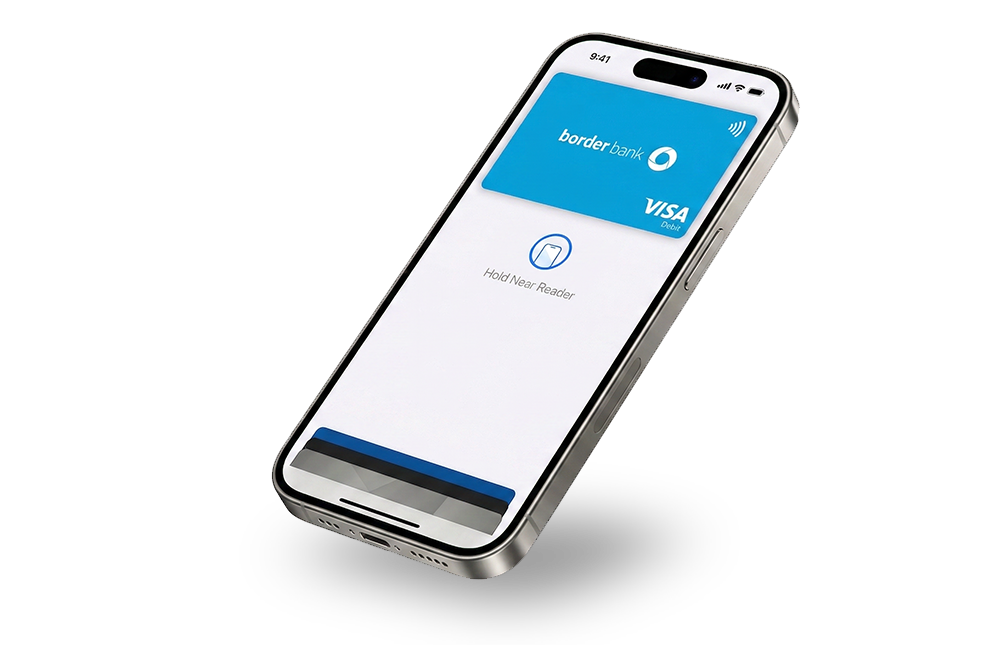
More ways to pay thanks to Border Bank digital cards
Digital wallets let you replace your bank card with your mobile phone without sacrificing security.

Easy way to pay
Leave your cards and wallets at home and pay with your phone instead.

Safe and secure
Digital wallets offer a range of additional security features to prevent fraud.

No extra charges
Using your Border Bank digital card won’t cost you any more than using your plastic.
How to add your digital card
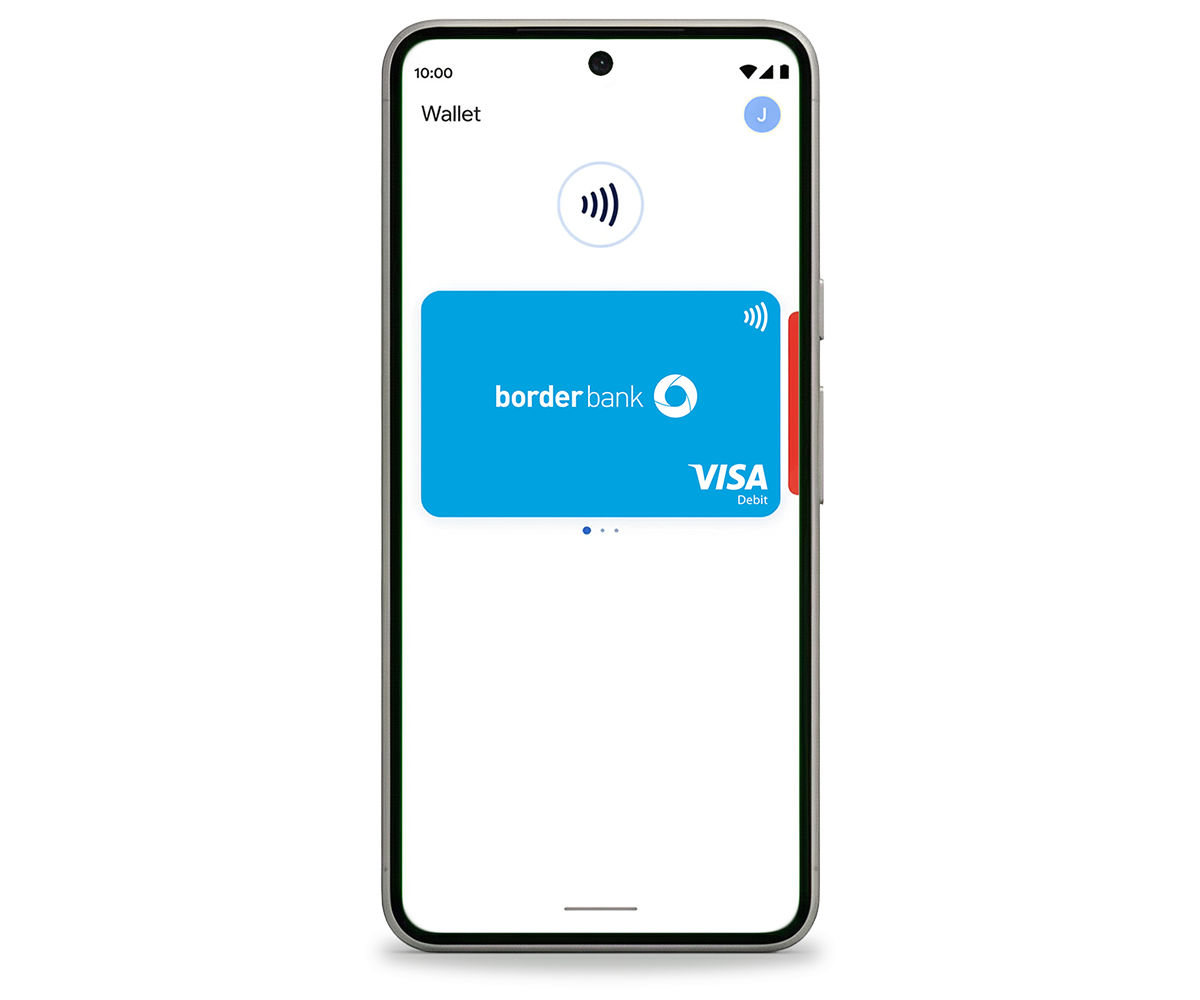
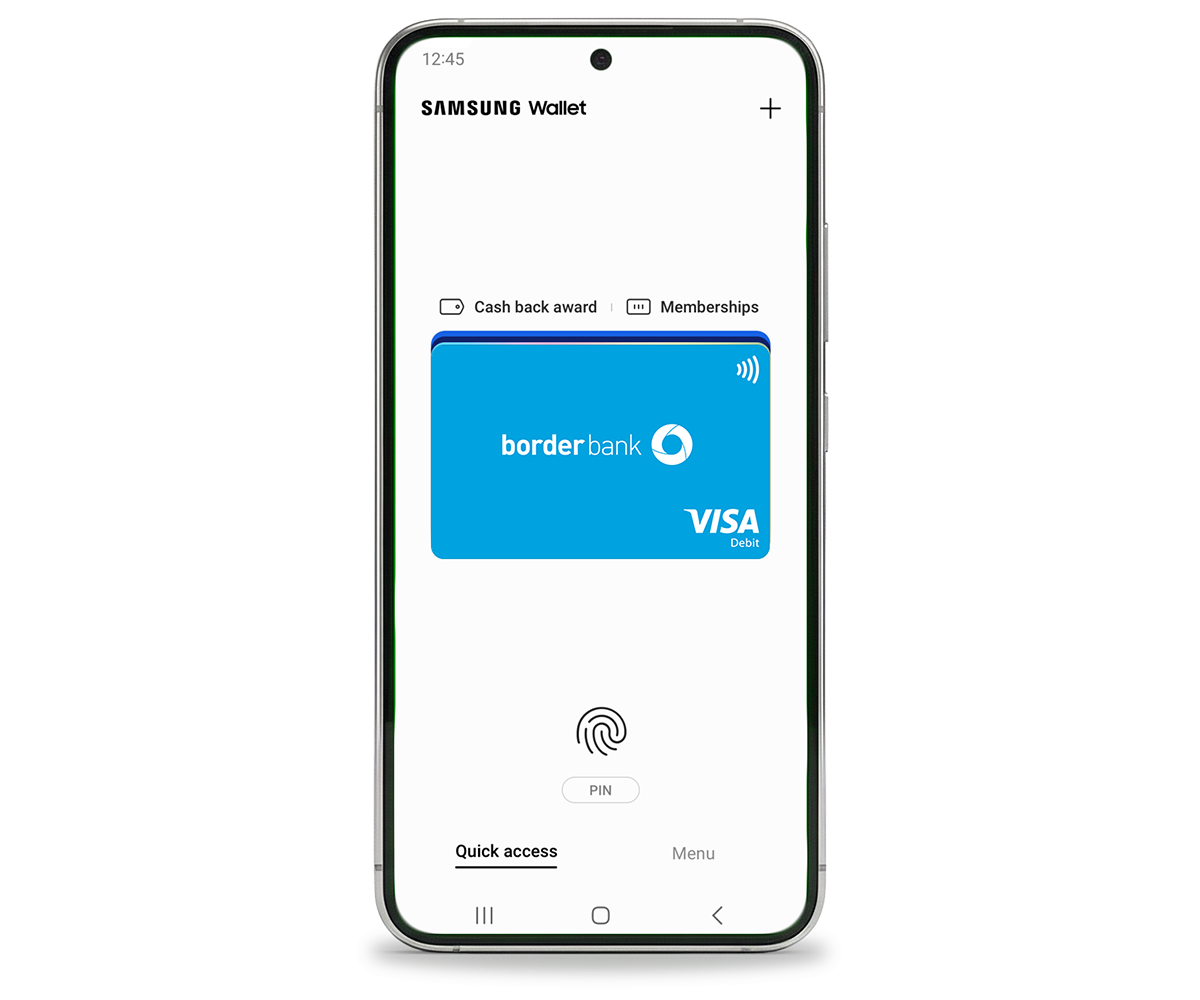
Setting up a digital card on your mobile device is a simple process. Just choose from the list of devices below and follow the step-by-step instructions.
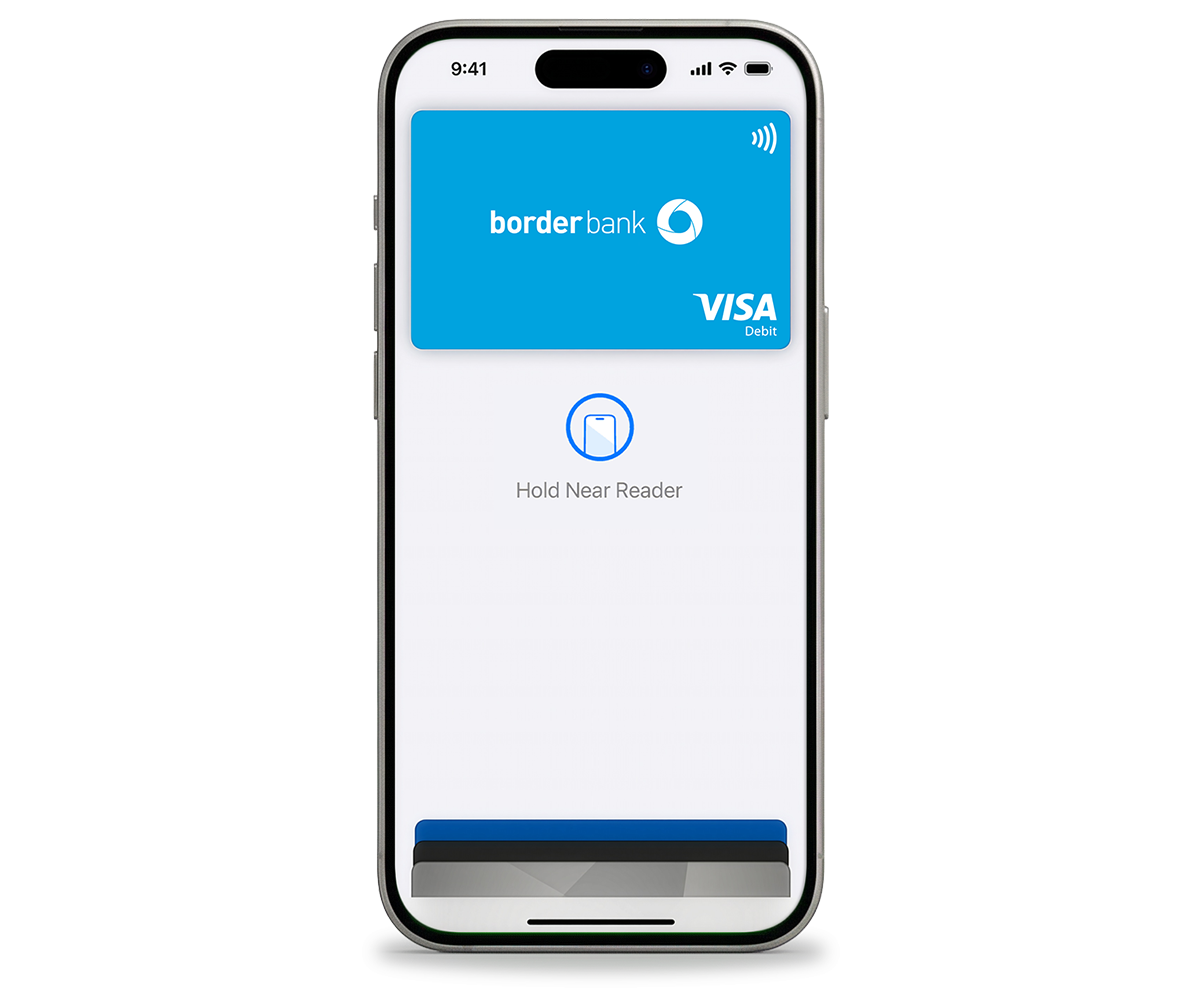
Apple Pay
- Open your Apple Pay digital wallet app.
- Select the ‘Add card’ button (the ‘+’ icon).
- You’ll be prompted to add either a debit or credit card. Select the card type you’d like to add and hit the ‘continue’ button.
- You’ll be given the option to add your card:
- by manually typing in your card details, or
- by scanning your card in with your device’s camera.
- Once your card details have been added to your digital wallet app, you’ll be asked to authenticate your identity using either Face ID or Touch ID.
- After your ID has been verified a final set of instructions will appear on your device’s screen. Simply follow the instructions to complete the set up.
- You can set your Border Bank card as your default card – simply open the Wallet app, tap and drag your Border Bank card to the front of the stack, and release.
Want to remove a digital card from your wallet?
You can remove digital cards you no longer use from your digital wallet just as easily as you can add new ones in.
Apple Pay
- Open your Apple Pay digital wallet app.
- Select the card you’d like to remove.
- Tap on the ‘three dots’ (which looks like ‘…’) in the top right corner of the screen.
- Select ‘Card Details’ from the list of available options.
- Choose the ‘Remove Card’ option to finish up.
FAQ
Here are some of the questions we’re often asked about digital cards. If you can’t find the answer you’re looking for, please contact us for more information.
We’re here to help
Call us Monday to Friday from 8:00am to 6:00pm AEST or reach out via our Contact Us page.
More Helpful Information

More ways to bank
Whether you prefer to bank online, in person, or on the go there are banking options designed to suit you.
Lost or stolen card
Follow these simple steps to report your card as lost or stolen and request a new one.